South Africa as other Nations They much depend on tax to run the Nation ,For the Tax payer are supposed to submit tax return to the SARS either Online or walk to the Center On this page will show you how you can Submit Individual Returns on SARS efiling With IRP5.
What is SARS eFiling
SARS eFiling is a free online solution for the submission of returns, declarations, and other related services. This service allows taxpayers, tax practitioners, representatives to register and submit returns/declarations, make payments, and perform several other interactions with SARS in a secure online environment. Once registered, eFilers can submit returns, view their tax status, and make payments to SARS electronically 24 hours a day.
Benefits of using eFiling to submit your Income Tax Return
- eFilers are given more time to make their submissions.
- Taxpayers/Tax representatives can save the Income tax return and submit it later, which will give them more time to review the information to be submitted to SARS
- eFilers have a full history of all submissions, payments, and electronic correspondence available at a click of a button.
- The system allows a taxpayer/tax representative to view the history of submissions made of the Income tax return on the system for their convenience.
- eFilers can receive SMS and email notifications to remind them when submissions are due.
- SMS and email notifications assist the taxpayers/tax representatives in the submission process by ensuring that the returns are submitted before the due date.
- The simplicity of the process results in fewer errors and creates a quicker processing cycle for individuals and business.
- There are embedded functions within the Income tax return such as pre-populating fields, pop up warning messages when incorrect information is completed and the simplified navigation. These functions are there to assist you whilst editing the return, which results in fewer errors, made during your return process.
- eFilers can revise the return declaration of their initial Income tax return via eFiling
- This function allows the taxpayer / tax representative to resubmit the revised information (Income tax return) previously submitted to SARS resulting in an accurate assessment.
How to use eFiling to submit your income Tax Return
Overview
When filing your Income tax return, you must ensure that correct information pertaining to your income/profit is recorded on your Income tax return. Some fields on the form are pre-populated; however, you are required to verify whether the information is correct (such as personal demographic information, contact details, banking details, IRP5 certificate and medical aid information). eFiling has been designed for ease in filing your return by using the Help-You-eFile function (refer to Edit the Return section of this webpage). This section will demonstrate how to submit your Income tax return via eFiling.
Note that additional/supporting documents relating to your Income tax return are submitted to SARS upon request; you are required to retain these supporting documents for a period of five years, should SARS require them in the future.
Auto Assessments
- SARS embarked on a process to improve efficiencies and tax compliance by introducing a method of submitting returns called an Auto Assessment. The auto assessment process enabled SARS to simulate assessment results based on Third Party data available at SARS’ disposal. SARS will issue an “Original Assessments based on Estimates”. The identified population would receive the “Notice of Assessments” for the applicable year as opposed to the simulated assessments that were issued previously. The taxpayer will not be required to do anything if they agree with the assessment issued by SARS. If the taxpayer is aggrieved or does not agree with the assessment issued by SARS, they will have an
opportunity to file their original return within a stipulated period to avoid penalties being imposed. - The taxpayer would have the ability to submit relevant material should they not agree with the estimate issued by SARS.
- Section 95 of Tax Administration Act has been amended to allow for the taxpayer to have to submit relevant material or a return after an estimate assessment has been issued without requesting extension for the period allowed.
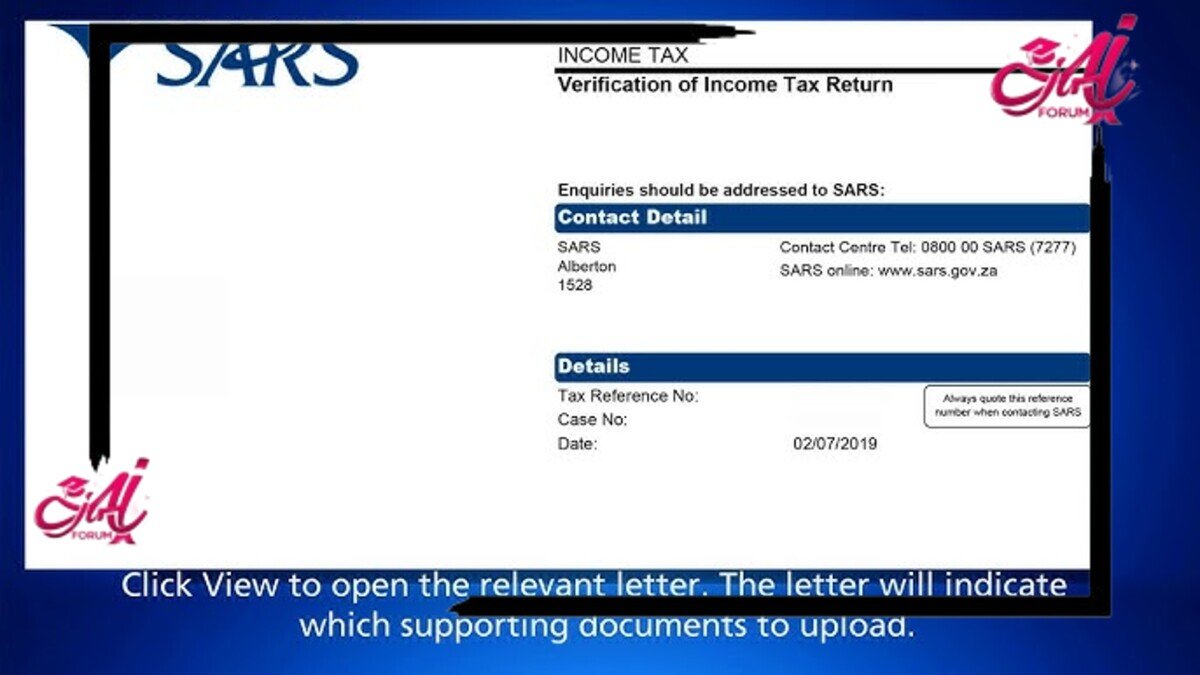
- The eFiling Dashboard will have a message to indicate that an auto assessment has been issued. Click ‘View’ button and the “Assessment Notice” screen will be displayed. The ITA34 will be viewed on the screen or available to download.


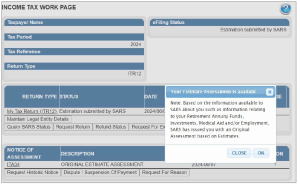
- Alternatively, if you have been selected as part of the original estimate population for the 2024 tax year, and you request the tax return the below message will be displayed on a pop-up window on the Income Tax Work Page, as indicated below. Click “OK” on the message and the Assessment Notice screen will be displayed.
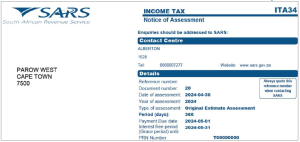
- Click the ‘Open’ button to view the ITA34.
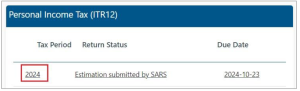
- On the home page, below the auto assessment message, click the 2024 hyperlink to be directed to the Income Tax Workpage.
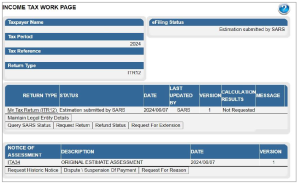
- In the instance that the taxpayer wishes to edit the return and declare further income, the return will be available to make changes. The current return filing process will apply, and the submitted declaration would be recorded as the original assessment from the taxpayer.
- If you choose to edit the auto assessment result generated by SARS based on third party data obtained, select the “Edit Return” button after you have opted to view the return.

- You can proceed to edit the return and submit to SARS.
- Alternatively, select the “Request Return” button on the Income Tax Work Page to submit your original return to SARS.

- The ITR12 return will open, and you may edit and submit to SARS. After submission, the status on the Income Tax Work Page will be updated to “Filed though eFiling”.
- If the return gets rejected by SARS, a decline letter will be issued to the taxpayer, and the Notice of Assessment will not be issued, and the taxpayer will be allowed to raise/log a dispute.
- If SARS accepts the return, the assessment will be processed, and the taxpayer may receive a reduced or additional assessment. Once the taxpayer receives the reduced or additional assessment, a dispute will not be allowed.
Request for Extension
- If the taxpayer is required to submit an original return or relevant material because of an estimated assessment being raised by SARS, the taxpayer may request for an extension for the period allowed to submit such required material/return.
- The ‘Request for extension’ button will be available for a period of 3 years. If you request an extension after 40 business days from which the estimated assessment was issued, ensure that you provide reasonable grounds for the request. The following message will be displayed where the taxpayer request for extension 40 business days after the assessment was issued:
- “Please note the date entered must be within 3 years from the Date of Assessment.”
- The request for extension will be granted to a maximum period not exceeding 3 years from the date of assessment for Income Tax.
- Click the “Request for Extension” button on the Income Tax Work Page as indicated in the below screen.

Complete the following fields on the Request for Extension screen:
- Reason for extension
- Reason for extension description
- Date extension to:
- select a date, not exceeding 3 years from date of the assessment
- When they hover-over the information icon the following message will be displayed:
- “Please note the date entered must be within 3 years from the Date of Assessment.”
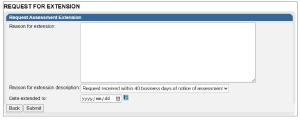
- Select “Back” to revert to the Income Tax Work Page or “Submit” to submit the Request for Extension to SARS.
- Applicable messages will be displayed after the submission of the Request for Extension and the taxpayer try to request the extension again:
- When a taxpayer received a request for extension rejection letter and tries to do a new request for extension, the following message will be displayed:
- “The Taxpayer’s Request for Extension can no longer be processed, as the request was previously rejected. Therefore, the Estimated Assessment issued to you for the tax period is now considered final”.
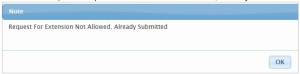
- When a taxpayer has submitted the Request for Extension, but has not received the confirmation notice and they click the request for extension button again:
- “Request for extension not allowed, already submitted.”
- When a taxpayer received a request for extension rejection letter and tries to do a new request for extension, the following message will be displayed:
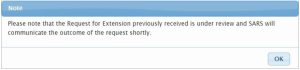
- When the taxpayer has submitted the request for extension, the confirmation notice is received and they have not received either the extension Granted or Decline outcome letter, and they try to request again:
- The taxpayer’s Request for Extension previously received is under review and SARS will communicate the outcome of the request shortly”.
- When the taxpayer has submitted the request for extension, the confirmation notice is received and they have not received either the extension Granted or Decline outcome letter, and they try to request again:
- Upon the completion of the request for extension by SARS, outcome letters will be issued and will be available on the Correspondence and the return Work Page on eFiling.
Request for Correction
After the estimate assessment have been raised by SARS, and the taxpayer has chosen to edit the estimated assessment return and submit an original return to SARS, the taxpayer will be able to request a correction on the return submitted, requesting SARS to issue an additional or reduced assessment.
SARS will issue correspondence in the case where the correction has been rejected. The taxpayer will have the option to dispute the decision taken by SARS, where SARS declined to issue a reduced or additional assessment. Refer to the SARS website www.sars.gov.za for more information on the dispute process.
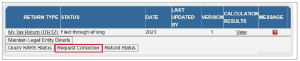
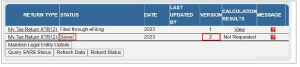
- A saved version of the return will be available to request the changes on and submit to SARS as per normal process.
Total Discharged Returns
- In terms of section 98 of the Tax Administration Act 28 of 2011 SARS may, despite the fact that no objection has been lodged or appeal noted, withdraw an assessment which—
- was issued to the incorrect taxpayer;
- was issued in respect of the incorrect tax period; or
- was issued as a result of an incorrect payment allocation and to the extent that there is reasonable ground to believe that the return submitted was a fraudulent and/or fictitious submission for the reporting year of assessment.
- Total discharge refers to filed returns that were cancelled by SARS.
- If the return(s) was submitted via eFiling, the status of these return(s) will be updated to “Cancelled”. If there is more than one version of the return, all the versions’ statuses for the applicable year of assessment will be cancelled. These include returns that were filed through another channel and processed on eFiling.
- For assessments that have been totally discharged, you will not be allowed to request for correction, make payments or dispute the total discharged returns. If there is any supporting document group open, upon receipt of Total Discharge assessment notice, supporting document group will be closed since the associated return is cancelled.
- Since the return is cancelled in totality, you will be allowed to issue, capture, and submit a new return for the same year of assessment.
- When a taxpayer attempts to file a dispute case (RFR/NOO/NOA/Condonation and Request for Reason/Request for Remission) while the total discharge is in progress or the assessment is withdrawn, the following message will be displayed:
- “Please note that a case to withdraw the assessment for the selected year of assessment is in progress. Therefore, you will not be allowed to file (RFR/NOO/NOA/CON/RFRE).”
- When a taxpayer attempts to file a Request for Correction (RFC) while the total discharge is in progress or the assessment is withdrawn, the below message will be displayed:
- “Please note that a case to withdraw the assessment for the selected year of assessment is in progress. Therefore, you will not be allowed to file a Request for Correction”.
- When a Total discharge has been finalised and Taxpayer request a dispute case (RFR/NOO/NOA/Condonation and Request for Reason/Request for Remission), the following message will be displayed:
- “No Assessment Found”.
- Taxpayer/ User may request SARS to withdraw the assessment based on the Financial Year-end changes, Fraud, Duplicate Registration/Tax Reference Number, or Incorrect taxpayer return submission.
Duplicate IRP5 Certificate
- Duplication of the IRP5 certificate occurs when SARS detects that your IRP5 certificate submitted to SARS is a duplicate of the one already submitted by another taxpayer, or where the PAYE number on your submitted IRP5 does not exist. Where such duplications are detected by SARS, the following error messages will respectively be displayed:
- “Your return cannot be processed due to an error on your IRP5 certificate. We are unable to verify the employer’s PAYE/Income tax reference number declared on your IRP5 certificate. Please contact your employer to verify the IRP5 details or make an appointment with a SARS branch for further assistance.”
- “Your return cannot be processed because the IRP5 certificate declared on your return has been submitted by another taxpayer. Please contact your employer to verify the IRP5 details or make an appointment with a SARS branch for further assistance.”
- Ensure that you read the message carefully to rectify the error with SARS before you will be able to proceed to submit your income tax return.
Rejected Return due to Invalid Tax Directive
- If you submit your Income tax return with a lump sum amount on a IRP5 certificate, SARS will perform verifications and one of the following messages may be displayed if the verification is unsuccessful and the return may be rejected:
- “Please note that this return cannot be processed, the directive number captured on the IRP5 differs with Directive No. XXXXXXXXXXXXXXX issued by SARS. Please contact the Fund Administrator/Employer to rectify the error and resubmit the return.”
- Please note that this return cannot be processed, the accrual date on the IRP5 differs from the accrual date on the Directive No. XXXXXXXXXXXX issued by SARS. Contact the Fund Administrator/Employer to rectify the error and resubmit the return.
- “Please note that this return cannot be processed, the Lump Sum source code on the IRP5 differs from the source code on Directive No. XXXXXXXXXXXXXXX issued by SARS. Contact the Fund Administrator/Employer to rectify the error and resubmit the return.”
- “Please note that this return cannot be processed, the Lump Sum amount on IRP5 differs from the Lump Sum amount on Directive No. XXXXXXXXXXXXXXX issued by SARS. Contact the Fund Administrator /Employer to rectify the error and resubmit the return.”
- “Please note that this return cannot be processed, tax Directive No. XXXXXXXXXXXXXXX was issued by SARS, but no Lump Sum amount is declared on the return. Contact the Fund Administrator/Employer to rectify the error and resubmit the return.”
- “Please note that this return cannot be processed, a Certificate No. from the IRP5 is not captured on the return for Directive No. XXXXXXXXXXXXXXX issued by SARS. Contact the Fund Administrator/Employer to rectify the error and resubmit the return.”
- Once the Fund Administrator or Employer has corrected the error either on the IRP5/IT3(a) certificate to correspond with the information on the tax directive or the directive has been corrected to correspond with the information on the IRP5/IT3(a) certificate with SARS, you will be able to proceed to submit your
income tax return. Ensure that you refresh the IRP5/IT3(a) data before completing the return.
Completion of the income Tax return via eFiling
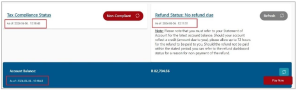
- On the eFiling Dashboard, the last refresh date and time along with the status to inform the taxpayer when the last status update was done on Tax Compliance Status, Refund Status and Account balance as indicated on the below screen.
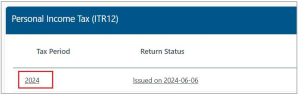
- To access the Income Tax Return, click on the relevant hyperlink for the tax year, e.g., 2024 for the tax year as indicated in the below screen.
- Alternatively, you can access the return as follows:
- Click on “Returns”
- Click on “Returns Issued”
- Click on “Personal Income Tax (ITR12)”
- Select the appropriate year and click on “Request Return” if your return has not been automatically issued by SARS.
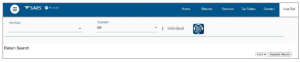
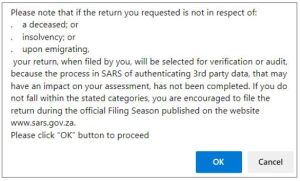
- In the case of an Insolvent estate, Deceased Estate, Cease to be a Resident instance, you may select the 2025 tax year, the following message will be presented. Select “OK” to proceed for the reasons indicated or “Cancel” to select the appropriate year to submit.
- An individual will not be allowed to request tax returns older than 5 years. The following message will be displayed if this instance: “Please note that the tax return older than 5 years cannot be requested via eFiling or MobiApp. Please make an appointment with a branch office for further assistance to request and submit older than 5 years tax return(s).”
- A registered tax practitioner will be able to request returns older than 5 years on eFiling, complete and submit these returns via eFiling or the SARS MobiApp.
- Once you have successfully requested your return, you will land on the “Income Tax Work Page”. A message will appear informing you that your Income tax return has been generated and contains the latest information SARS has on record for you.
- You are required to read the message carefully and select “OK” to continue.
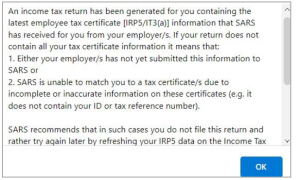
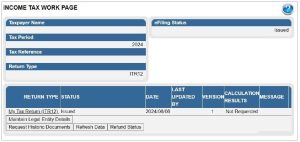
- If your Income tax return has been issued, it will appear within the “Income Tax Work Page”, displayed within the grid.
- If the income tax return has been issued and/or saved prior to opening of 2024 Filing Season and updated information has been received by SARS from third parties, the following message will be displayed. Click “OK” to proceed and the system will automatically update the third-party information.
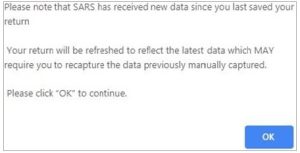
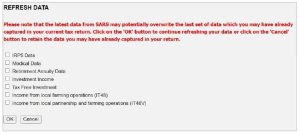
- Before opening your Income tax return, ensure that you click the “Refresh Data” tab to populate the return fields with the most recent IRP5/Medical/Retirement Annuity/Investment Income/Tax Free Investment and address data, as supplied to SARS by your employer/Medical Aid/Pension fund.

- Indicate the applicable third-party data to refresh and click “OK” to proceed or “Cancel” to be redirected to the Income Tax Work Page.
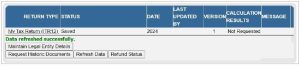
- The work page will indicate that the data is refreshed successfully.
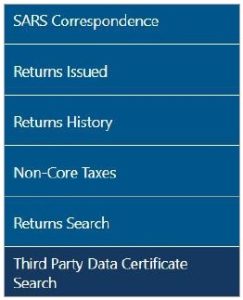
- You can view third-party data certificates submitted by third party data providers on your behalf by selecting the “Third Party Data Certificate Search” tab on the Returns menu tab. Refer to “How to view submitted third party data returns or data files via eFiling – External Guide” for more information.
- Open your income tax return by clicking on the “My Tax Return (ITR12)” hyperlink.
- If you would like to remove the left-hand menu to make the screen bigger, click on the three lines on the left corner of the screen.

- The income tax return will be displayed in HTML format. Ensure that you have a compatible browser to view the Income tax return.
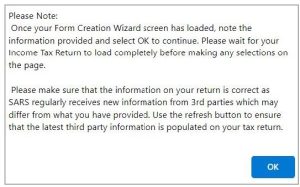
- A warning message will be displayed to ensure that you allow the return to load before making any selections and to make sure that all information on the return is correct, as SARS regularly receive new information from 3rd parties which may differ from what you have provided. Click ‘OK’ on the message to proceed.
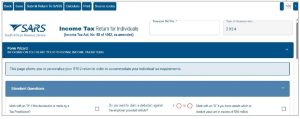
- Standard and Comprehensive questions will be displayed as the first page of your Income tax return for Individuals. This is a wizard that will aid in creating your customised Income tax return for Individuals. However, you only need to update the information if your tax affairs have changed over the past year, as your Income tax return will be customised with the same fields that you requested last year. To add extra income and deductions sections to your return, select the relevant options on the wizard.
- Where information has not been completed, the relevant tab will be indicated in red, as displayed on the below screen.
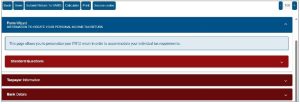
- Note 1: Mandatory fields are indicated in red. That implies that these fields must be completed.
- For a detailed description on how to complete the Income tax return for Individuals, and the various sections that will be applied during the assessment process of the return contained in the Acts: Income Tax Act No.58 of 1962 and the Tax Administration Act No 28 of 2011, refer to the ‘Comprehensive guide to the ITR12’ published on the SARS website.
- Note 2: The personal information must be that of the taxpayer and not those of the tax practitioner completing the return on behalf of a client.
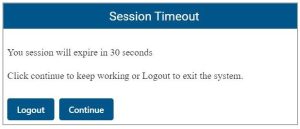
- Note 3: If you are on eFiling and have not actively been working on the Income tax return, a session timeout message as indicated below will appear. You can choose to logout or to continue working on the return.
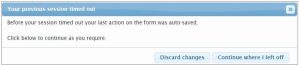
- Note 4: If your session timed out, a message will be displayed to indicate that the form was auto saved, and you can either discard the changes or continue with the saved changes.
- Ensure all the information on the taxpayer information section is correct and up to date.
- If you select “married in community of property” in the Marital Status field, the following fields in the Spouse Details container will become mandatory:
- Spouse initials;
- Spouse ID No.; or
- Spouse Passport No; and
- Passport Country.
- Note 5: To update your ID number or Passport Number, you are required to make an appointment on the SARS website or the SARS Mobile App to visit your nearest SARS Office.
- If the populated information is incorrect, enter the correct information in the fields provided.
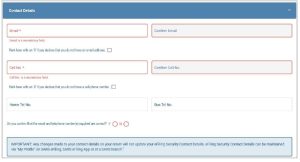
- If you want to update your cell phone number and email address that are pre-populated in the Contact Details section of the return, delete the pre-populated information and fill in the new information.
- if your contact details are completed on the return, select “Yes” or “No” to the question that you confirm that the email and telephone number(s) you provided is correct.
- For more information, refer to the “How to register for eFiling and manage your user profile” available on the SARS website www.sars.gov.za
- If your physical and postal address is prepopulated on the return, you will be able to change the address details if necessary.
Change of Banking Details
- All changes to your banking details will be verified by SARS before your profile is updated. SARS will notify you if you are required to submit supporting documents to verify your banking details.
- Should you require any further information concerning banking detail changes, you can:
- Access the SARS website www.sars.gov.za;
- Call SARS on 0800 00 7277; or
- Make an appointment to visit your nearest SARS Office.
- REMEMBER: Without accurate bank details SARS cannot pay you a refund, where it is due.
Bank Details Container
- The Bank Details section of the ITR12, consist of the following sections:
- The Bank Account Holder Declaration
- Please note that the Account Holder Declaration statement will be defaulted to ‘I use South African bank accounts’
- A message will be displayed in the Bank Account Details section to inform you that all changes to your banking details will be verified before updating your banking profile.
- The Bank Account Holder Declaration
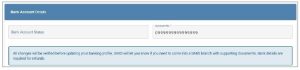
- Click the “Edit” button on the Bank Account Holder Declaration header to change any pre-populated bank details.

- A confirmation message will be displayed when you select to edit the bank detail information. Click “Yes” or “No” to proceed.
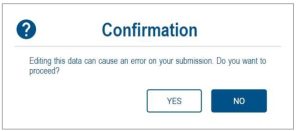
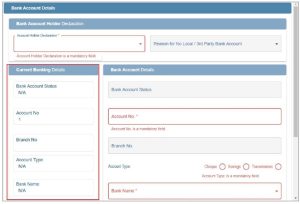
- If you select “Yes”, the current bank details will be displayed, and new fields will be available to capture the new bank details.
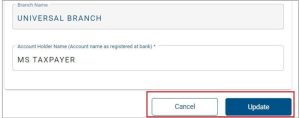
- After you have entered new bank details, click “Update” to proceed with the bank detail changes or “Cancel” to close the bank account details container.
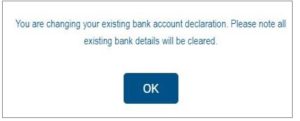
- If you select “I declare that I have no South African bank account” and there are current bank details saved at SARS, the following message will be displayed to confirm that the existing bank details will be deleted. Click “OK” to proceed.
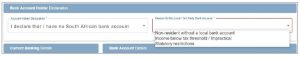
- If you have no local bank account or use a third-party bank account, select the applicable option from the Account Holder Declaration drop down menu.
- Select the relevant reason for no local bank account or use a South African bank account of a third party and click “Update” to proceed.
- Mark the agreement statement box with “X” in the Bank Account Details container.
- Note 7: If you indicated that you do not have a South African Bank account and later this is found to be incorrect, SARS may impose administrative penalties of up to R16000 depending on your taxable income.
- You are reminded to check your banking details if the system identifies that you have filed an incorrect banking account number.
- To correct your banking account number:
- Click “Open Return” to rectify the account number; or
- Click “Continue” if you are certain that your banking details are correct.
- If you choose to continue and your banking details are incorrect, your return will not be filed but will be saved until you correct the banking details.
- If the banking details are incorrect the status of the return will be displayed as “Saved with invalid bank details”. Ensure that you capture and submit the correct banking details to SARS.

Additional information when completing the Income Tax Return
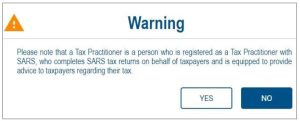
- If the ITR12 form are completed by a tax practitioner, the following message will be displayed when the first question “Mark with an “X” if this declaration is made by a Tax Practitioner?” is marked. If you select ‘NO’, the question will be unmarked. If you select ‘YES’, the Tax Practitioner Details container will be displayed for completion.
- Compare your IRP5/IT3 (a) certificate(s) received to the populated information provided on your Income tax return.
- Where your employer/pension fund has not submitted your IRP5/IT3(a) information to SARS, your Income tax return will not be populated. You have the following options:
- Click on “Save Return” and refresh the return by selecting the “Refresh Data” button on the Income Tax Work Page; or
- Enter the information in the fields provided.
- If you choose to file your Income tax return when not all your IRP5/IT3(a) information has been submitted by your employer/pension fund(s), your assessment may be delayed, and you may be required to submit supporting documents.
- Where your employer/pension fund has not submitted your IRP5/IT3(a) information to SARS, your Income tax return will not be populated. You have the following options:
- Depending on which of the standard and comprehensive questions were selected, the relevant containers will be displayed for completion.
- SARS will prepopulate information relating to the investment income (i.e., local interest, foreign interest, foreign dividends, Distribution from a Real Estate Investment Trust/s (REIT), Tax Free Investments, etc.).
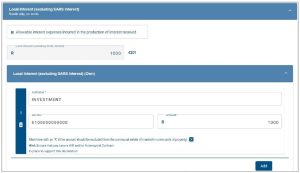
- When you have to manually complete the Investment Income section of the return, and the data has not been pre-populated by the data received by SARS from third parties, click the “Add” button to add the relevant investment income information, where applicable.
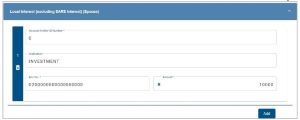
- From 2024 year of assessment, if you are married in community of property, the investment income section will display the relevant containers where spouse information is pre-populated (from third party data) or editable for completion, where applicable.

- Below is an example of the Investment Income section of the ITR12. Click the “Add” button to complete any additional information to declare.
- When completing the Voluntary Disclosure Programme (VDP) section of the return and a VDP number is completed and the submission of the return result in a refund, the return will be rejected on eFiling with the status on the Income Tax Work Page as “Rejected by SARS” and the following message will be displayed to the user “The Return you are submitting does not meet the Voluntary Disclosure Programme legislative framework. Please contact the Voluntary Disclosure Unit for more information.”
- Please note: Medical deductions in respect of a person with a disability – As a result of a change in legislation, an ITR-DD form, Confirmation of diagnosis of disability for an individual taxpayer, which is available on the SARS website www.sars.gov.za, has been designed and contains the criteria for the diagnosis of disability. These legislative changes are effective from 1 March 2009 and are applicable from the 2010 year of assessment.
- For further assistance, refer to the “Tax Guide on the Deduction of Medical Expenses” available on the SARS website www.sars.gov.za
Submit the Income Tax Return on eFiling
- At any stage you can save your Income tax return before submitting it by clicking on “Save”.
- Tax practitioners that have not re-registered and received accreditation as a Tax Practitioner by a Recognised Controlling Body, will be regarded as unregistered tax practitioners and will no longer be permitted to submit returns on behalf of their clients. Unregistered tax practitioners will have the ability to prepare and save Income tax returns on behalf of their clients, but the submission of the prepared returns may only be performed by the Taxpayer.
- Submission of the saved return by the taxpayer may only be performed in either of the following ways:
- By the taxpayer on his/her own eFiling profile via the shared access functionality on eFiling.
- By the taxpayer visiting a SARS Office, where the taxpayer must inform the Service Consultant that the return has been prepared by an unregistered tax practitioner, and the Service Consultant will retrieve the saved return and submit from the SARS systems.
- Unregistered tax practitioners will be able to complete the Income tax return on behalf of the taxpayer and will have the following options available:
- Save – this option will allow saving of the return without performing form validations and will allow the incomplete return to be saved on eFiling.
- Save Return For Filing – this option will allow form validations to be performed when the Income tax return is saved on eFiling. The return will be available for retrieval at the SARS branch office by an agent from the SARS systems to be submitted or retrieved on eFiling by the taxpayer via shared access for return submission.

- NOTES:
- The completion of the Income tax return will be the same as the current process.
- The “Submit return to SARS” and “Request for Correction” options will not be available to unregistered tax practitioners.
- After the completion of the Income tax return and selection of the “Save Return for Filing” button, the following screen will be displayed to indicate that the Income tax return has NOT been filed.
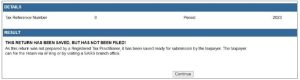
- The status of the Income tax return will be indicated as “Prepared for Filing” on the Income Tax work page.
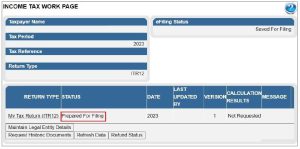
- Notices regarding the successful submission of the Income tax return will be sent to eFiling of the unregistered tax practitioner as per the current functionality including the requests for supporting documents.
- eFiling will check the correctness of specific information. Where information is incorrect and/or incomplete, eFiling will prompt you to correct the captured information before your return can be submitted. Below is an example of the message that may be displayed.
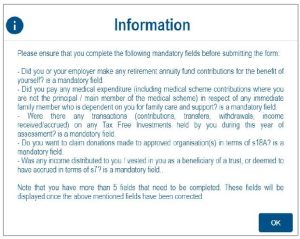
- Once you have captured all the information on your Income tax return and you are ready to submit it to SARS, simply click “Submit return to SARS”.
- The Declaration screen will be displayed with the date pre-populated. Click “Confirm” to proceed to submit the return to SARS or “Cancel” to be routed back to the return.
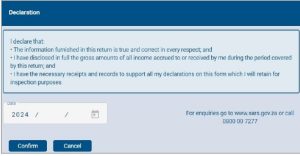
- You will receive confirmation when your Income tax return has been submitted.
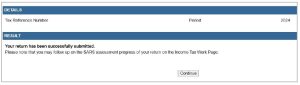
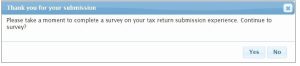
- After the successful submission of the ITR12 return, you will be prompted to complete a survey. Select “Yes” to complete the survey and “No” to close the message and not complete the survey.
- Once you click “Continue”, the “Query SARS Status” button will appear on the Income Tax Work Page, enabling you to query the status of your ITR12 return.
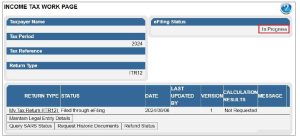
- If the Return is still in process, the status on the Income Tax Work Page will be indicated as “In Progress”.
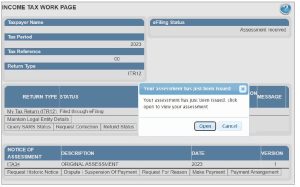
- Alternatively, if an assessment has been issued, the status will be updated to indicate “Assessment received”. A pop-up message will be displayed to indicate that the assessment has been issued. Click “OK” on the message to open the ITA34 or “Cancel” to close the message.
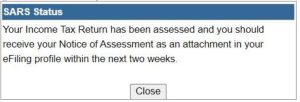
- This is an example of a status:
- Remember – check the status of your return on the Income Tax Work Page to ensure that it reflects as filed.
- Note: If you would like to change any information, except for personal details on your return after you have submitted, click on “Request Correction” on the Income Tax Work Page. Your return will be displayed, and you can make the necessary changes and resubmit. Refer to the Request for Correction section below. To update personal details, refer to section View Correspondence of this webpage.
Returns submitted through another channel
- If you have already submitted your income tax return or required supporting documents for your income tax return in the past 3 years to SARS via the SARS branches or using the SARS Mobile Application (SARS MobiApp) and your notice of assessment has been issued, eFiling will be updated with these returns and supporting documents allowing you to view or correct your submitted return via eFiling.
- Alternatively, newly registered eFiling users, will also be able to view and correct returns that have been submitted through another channel in the last 3 years.
- The status on the Income Tax Work Page will be displayed as “Filed through another channel”.
- Note: The update of these return statuses will include overdue returns reflected on eFiling that has already been submitted to SARS through another channel.