


How to Create MyLife Unisa Account The UNISA Students they can easily access their module resources, submit assignments, interact with other students and with your e- tutor or group Through MyLife Unisa,this article Guide on How to Create MyLife Unisa Account
What is MyLife Unisa
myLife. myUnisa is the official student portal for students where you can access your module resources, submit assignments, interact with other students and with your e- tutor or group. myLife is your official Unisa email account for all communication with Unisa and your lecturers.
How to create a MyLife unisa account
Accessing your myLife e-mail account Due to a recent Microsoft update, you will no longer be able to directly access your myLife e-mail account when logged in to myUnisa.
New procedure to access your myLife e-mail account
To access your myLife e-mail account, please follow these steps:
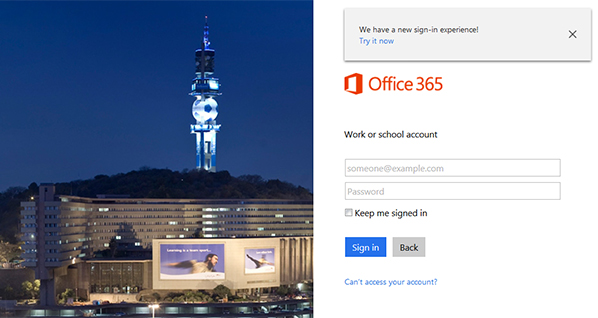
- Go to the http://mylife.unisa.ac.za/
- Enter your full e-mail address (eg xxxxxxxx@mylife.unisa.ac.za) and your password for your myLife e-mail account.
- Select “Sign in”.
What to do if your password is not active on myLife / O365?
It may be necessary to reset your myUnisa password to synchronise it with your myLife mailbox.
- Login to myUnisa and click on “My Admin”.
- Click on the “Change Password” link.
- Complete the form to update your password. Please note that this new password will be active for both your myUnisa and myLife services.
Important information
During peak periods, it may take approximately 30 minutes for the new password to activate on the myLife service. If you are still experiencing problems after resetting your password, please send an e-mail to MyLifeHelp@unisa.ac.za for assistance.
How do I activate myLife Unisa account?
STEP 2: Claim your Unisa login Click on“Claim Unisa login”
STEP 3: Enter your student number Enter your student number
STEP 4: Enter your personal information Enter the personal details used when you originally registered with UNISA.
STEP 5: Read the guidelines Please read and acknowledge that you have read each statement.
STEP 6: Only ONE password 1234567 1234567@mylife.unisa.ac.za +2782xxxxxxxx Your password for both myUnisa and your myLife e-mail account will appear on the screen abc12DEF To access your myLife e-mail account, go to http://mylife.unisa.ac.za VERY IMPORTANT: Your myLife account can take upto 24 hours to be activated
STEP 7: Login to myUnisa“Click here to login” to your myUnisa account Click here to login to myLife email
STEP 8: Open your myLife e-mail account Enter your FULL myLife email address: 12345678@mylife.unisa.ac.za and then select the “Next” button
STEP 9: Sign out of your myLife e-mail Joe Bloggs Click on the “sign out” link. Joe Bloggs Click on the “head” image VERY IMPORTANT: Remember to always SIGN out of BOTH your myLife AND myUnisa accounts.
STEP 10: Sign out of your myLife e-mail VERY IMPORTANT: Make sure you always see this message as proof that you have signed out of your myLife account
Frequently Asked Questions (FAQs)
What is a MyLife UNISA account?
It is the official student email system used by :contentReference[oaicite:2]{index=2} for communication and academic updates.
How do I create a MyLife UNISA account?
You create it by using your student number after admission and following the activation steps on the UNISA portal.
Do I need to register separately for MyLife email?
No, it is automatically created once your UNISA student account is activated.
Can I access MyLife without being accepted at UNISA?
No, only registered or admitted students can activate it.
What is my MyLife email format?
It is usually your student number followed by @mylife.unisa.ac.za.
What should I do if I forget my MyLife password?
Use the password reset option on the UNISA login page.
Why is my MyLife account not working?
It may not be activated yet or you may have entered incorrect login details.
Can I use MyLife on my phone?
Yes, you can access it through mobile browser or email apps.
Is MyLife important for exams?
Yes, all exam updates and notifications are sent through it.
Can I change my MyLife email password?
Yes, you can change it anytime through the UNISA portal.
Do I need internet to use MyLife?
Yes, it is an online email service.
Can I delete my MyLife account?
No, it remains active as long as you are a UNISA student.
Is MyLife the same as myUNISA?
No, MyLife is email, while myUNISA is the academic portal.
How often should I check MyLife email?
It is recommended to check it daily.
What happens if I don’t activate MyLife account?
You may miss important academic updates from UNISA.