As with many Candidates trying to reach the Main website www.zimsec.co.zw, you might also be having trouble accessing it. The website is jammed; as traffic subsides it will come back online.
What Is dcmv1.zimsec.co.zw?
dcmv1.zimsec.co.zw is a regional results login portal hosted by the Zimbabwe School Examinations Council. It allows candidates from specific regions (like Harare and Masvingo – Region 1 & 6) to log in and view their national exam results online.
Alternative Links to Check your Results
Don’t worry you can still access your results. Visit either one of the links below and you will be able to.
- https://dcmv1.zimsec.co.zw/
-
dcmv2.zimsec.co.zw – Manicaland & Midlands
-
dcmv3.zimsec.co.zw – Bulawayo & Matabeleland provinces
-
dcmv4.zimsec.co.zw – Mashonaland provinces
When Can You Access Your Results?
ZIMSEC typically opens the online results portal after official exam results are released (e.g., January for November exams). The portal usually stays open for about five days, so it’s important to check early once results are announced.
What You’ll Need to Register
To access the results, you’ll need to register on the ZIMSEC platform. The process requires the following details:
- The candidate’s full name
- The candidate number
- The centre number
- The candidate’s date of birth (D.O.B.)
These details are essential for verifying the candidate’s identity and ensuring only authorized guardians access the results.
How to Login to dcmv1.zimsec.co.zw
Here’s a simple step-by-step guide:
Step 1: Open the Portal
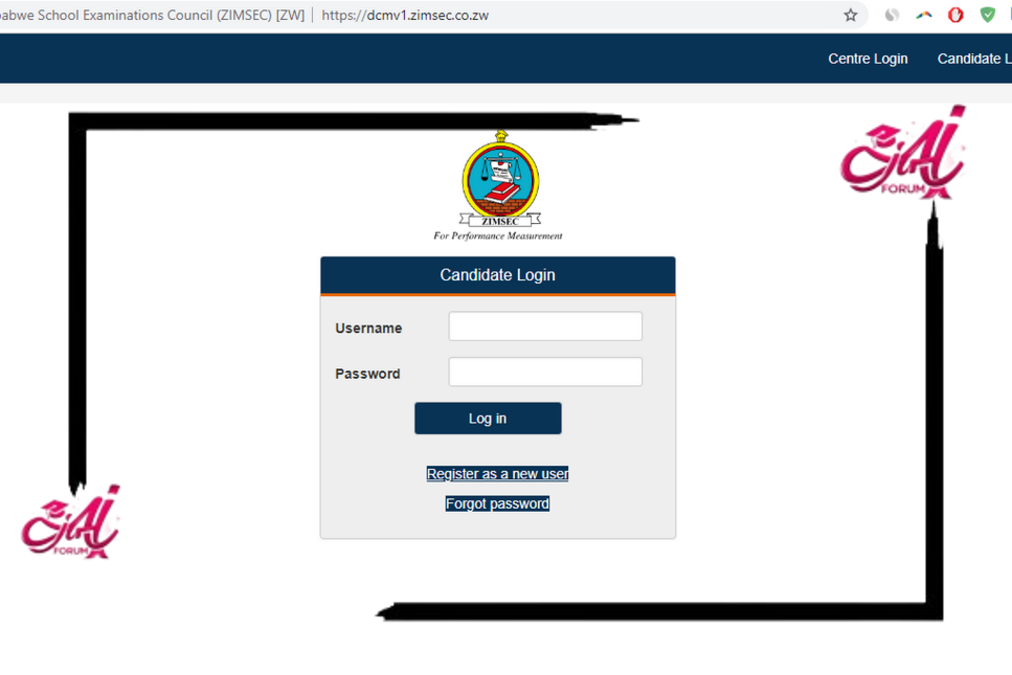
Go to https://dcmv1.zimsec.co.zw/Account/ZimsecLogin in your web browser.
Step 2: Enter Login Details
-
Username: The one you created during registration
-
Password: Your secure password (with uppercase letters, numbers & symbols)
Then click Login.
Step 3: View Your Exam Results
Once logged in, you can access your results, including subject grades and overall performance.
How to Register if You Don’t Have an Account
If you’re a first-time user, follow these steps on the registration page:
-
Go to the Register page on the portal.
-
Enter your Centre Number (six digits)
-
Enter your Candidate Number (four digits)
-
Select your Session (June/November)
-
Select your Level (Grade 7, O’Level, or A’Level)
-
Enter the Year you sat the exam
-
Enter your Full Name (Surname first, then first name)
-
Enter Date of Birth (DD/MM/YYYY format)
-
Choose a Username and Password
-
Confirm your password and click Register
If all details are correct, registration completes and you’ll be redirected to the login screen where you can sign in