


The Zimbabwe School Examinations Council (ZIMSEC) has released the 2024 results for Advanced Level examinations,This Guide will help to access your results Step by step.
ZIMSEC Advanced Level Results
- Zimbabwe School Examinations Council (ZIMSEC) is responsible for publishing the Advanced Level Results www.zimsec.co.zw.
Here are the respective links to the ZIMSEC results portal (if one isn’t working try the other):
ZIMSEC has also shared an Online Results Distribution Manual which contains the following instructions:
- how to create an account on the portal
- how to login
- how to view your results
How to create an account on the ZIMSEC portal
Kindly Visit Zimsec Official website https://dcmv1.zimsec.co.zw
1. Enter the six digit Centre Number.
2. Enter the four digit Candidate Number.
3. Choose session from the drop down list, either June or November.
4. Choose level from the drop down list, either O’Level or A’level.
5. Enter the Year you sat for the exam.
6. Enter your Candidate Name as it appears on the statement of entry.
If the name typed differ in anyway from the one on the statement of entry, the account will not be created.
7. Enter your date of birth, using the dd/mm/yyyyformat.
8. Enter a username that you would like to use for logging in to the application.
9. Enter a password, that comprises of a capital letter, digits,and non alphabetic characters. For example Zimsec123! would be a valid password.
10. Reenter the password in the confirm password text box.
11. Click the register button.
12. If account registration is successful, the application will redirect to the login screen.
13. If there are any errors, the application will display the errors on the screen.
14. It’s important for the candidate to remember their Security Phrase and Username in case they loose their password.
How to login
If you already have an account, you’ll want to log in:
- Go to the portal
- Enter your Username and Password as created at user registration
- Click on Login
How to view results once in the portal
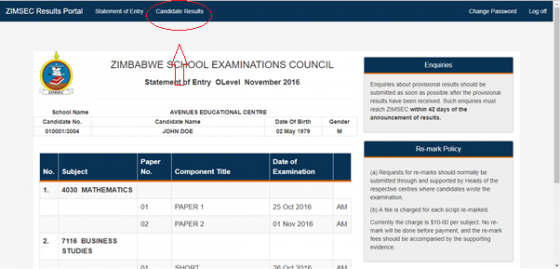
- Once logged in select the Candidates Result option
Reset your ZIMSEC Portal Password
To change your ZIMSEC password here’s what to do
- Tap on forgot password
- Fill in the portal with the following details
- Username
- Current password in the field Old Password
- New password
- Retype the new password on Confirm Password
- Tap on the Reset button to effect the change
Address:
Upper East Road, Mount Pleasant Harare, Zimbabwe
Coordinates 17°47’11.456?S 31°2’38.65?E
Contact
- +263-4-304552/3 , 302623/4
+263-4-302288 , 333889
Website: http://www.zimsec.co.zw
